
Here is a demonstration of the use of the interface to create a signature :
When you create a signature, you can download it on your computer, since it will not be stored
on the server.
Use for this the button which is just below the signature, on the left :

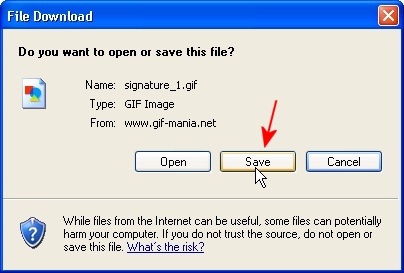
Choose to save the file :
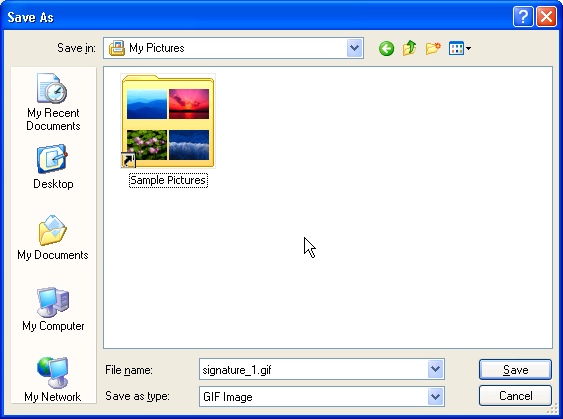
Then select a place on your computer :
To use your signature on a site, a forum, in your Orkut scrapbook or in an instant messaging,
you have to obtain at first a permanent link.
For it it is necessary to be connected to your account, and to add the signature to the list of your favorite signatures, with the link which seems just below your signature :
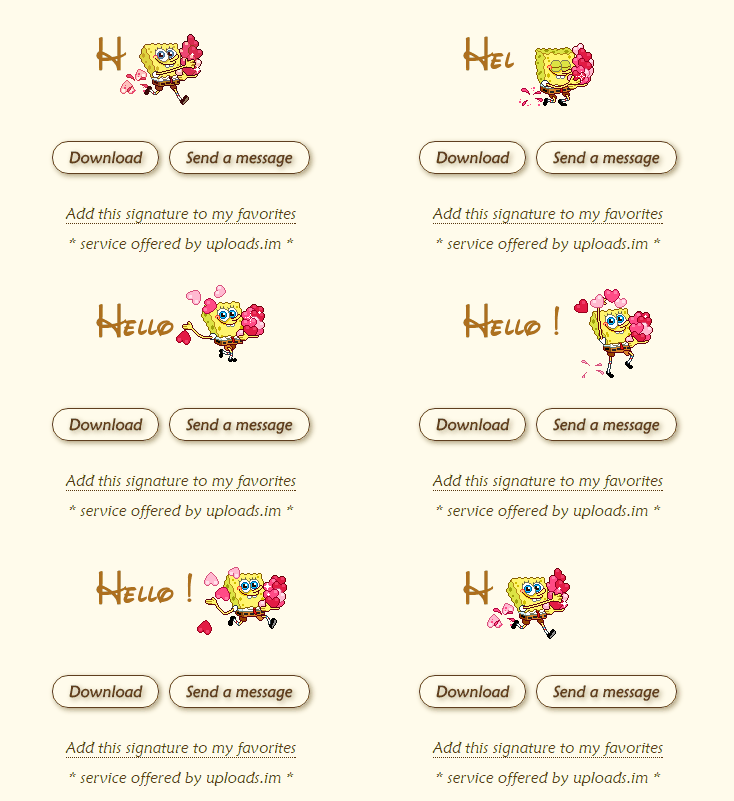
Once the signature was added to your preferred, you obtain then its permanent link :

To use your signature into your emails, choose the appropriate function in your email software.
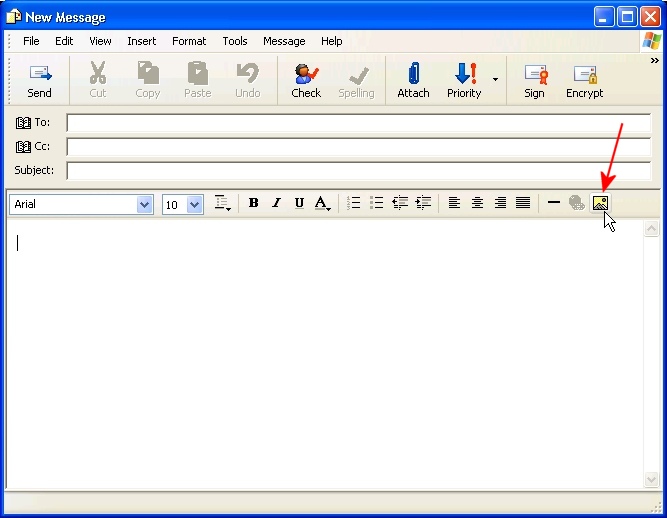
After you have written your mail, click on the "Insert Picture" button, or select in the menu "Insert", then "Picture" :
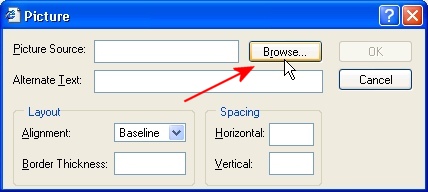
Then click on the "Browse" button :
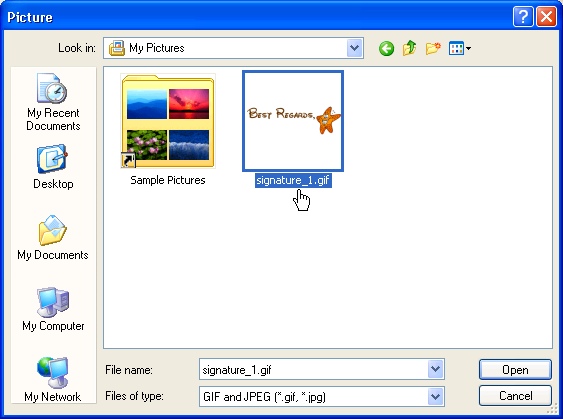
Then select the image that you saved on your computer :
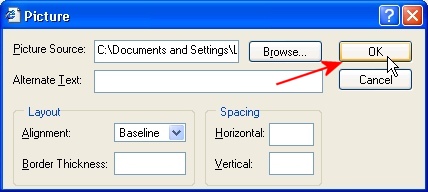
Finally, click on the "OK" button to confirm your choice :
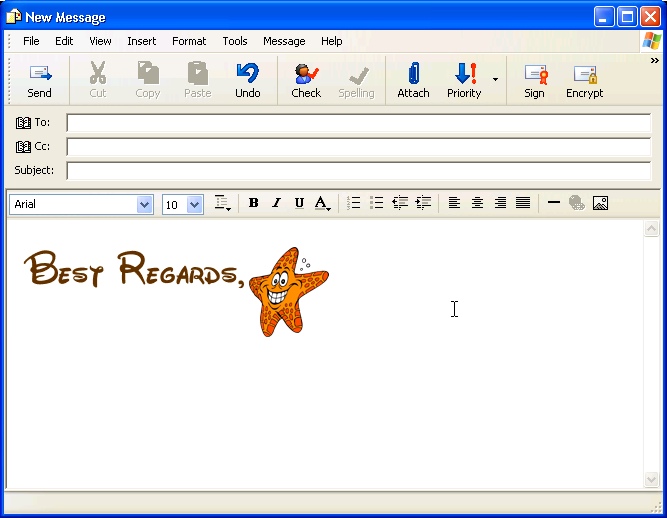
Your signature will appear in your mail :
You have to store your signature on a web server first, as described in the previous chapter.
Then, highlight the picture of your signature, this way : click on the right bottom and outside the picture and move your mouse cursor to the
top left. Right click the picture and choose "Copy" in the menu :
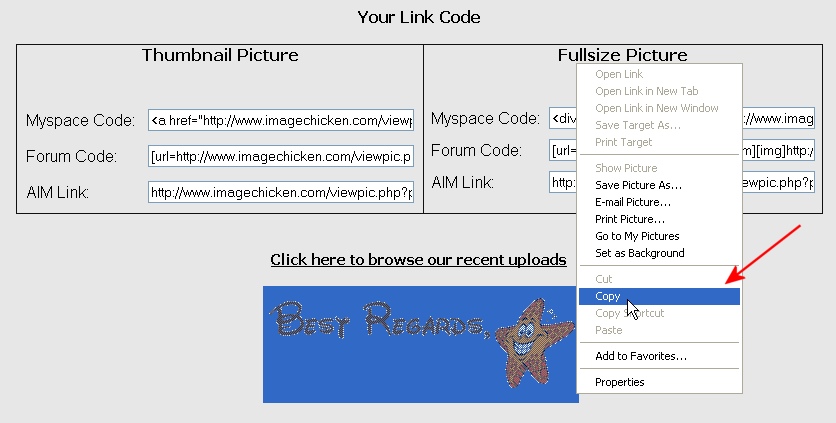
Now go to your MSN / Gmail / Yahoo! Mail / webmail interface, and when you have written your mail, right click and choose
"Paste" :
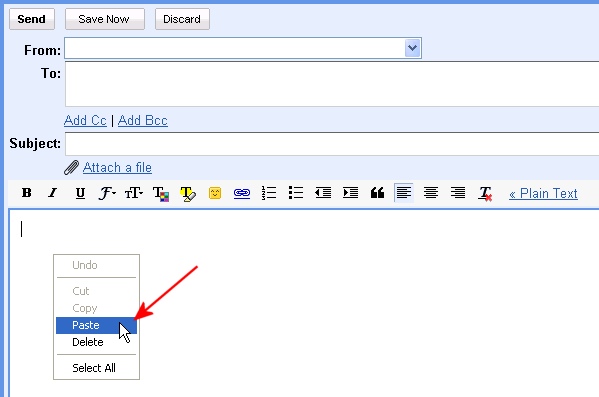
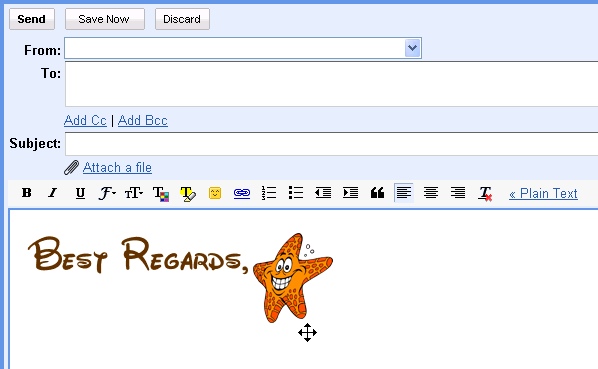
Your signature will appear in your mail :
After you have written your mail, click on the "Insert" tab on top, and then on the "Picture" button :
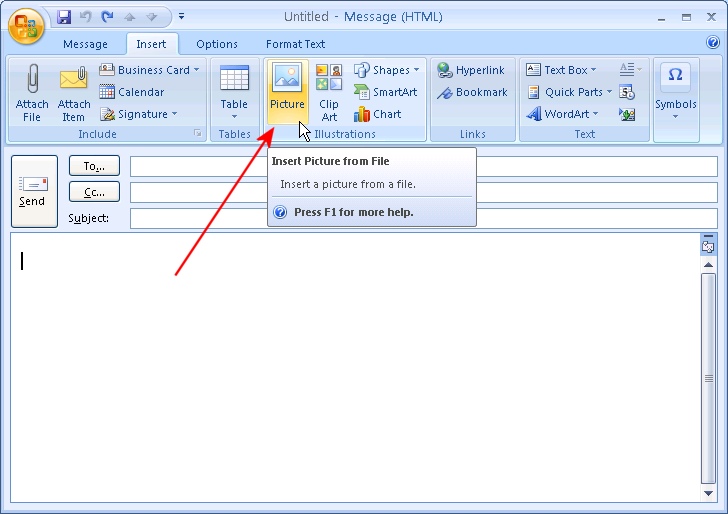
Then select the image that you saved on your computer :
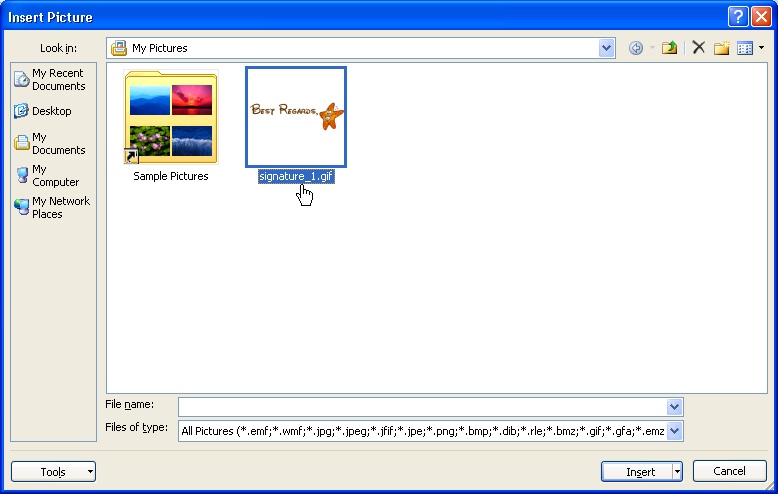
Your signature will appear in your mail :
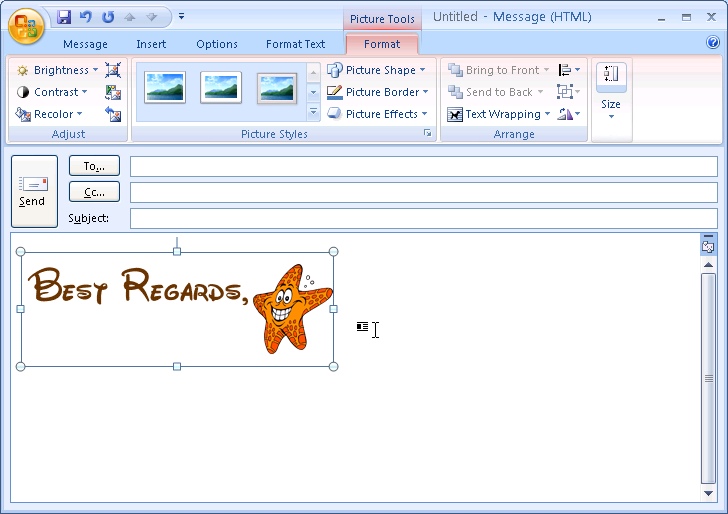
Note that your signature will appear as a non-animated picture at this time.
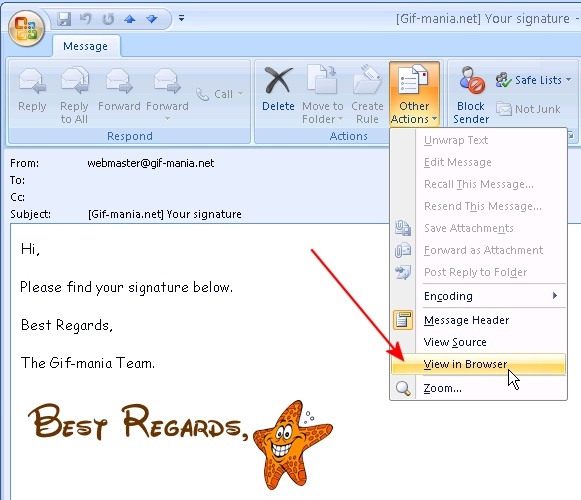
When you receive a mail with this kind of signature, you have to open the mail in a new window, then to click on the "Other Actions" button,
and choose "View in Browser" :
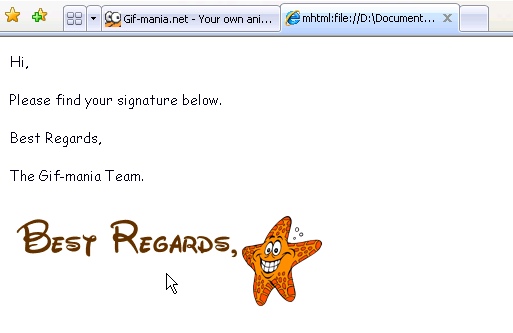
Then the signature will appear as animated in your browser :
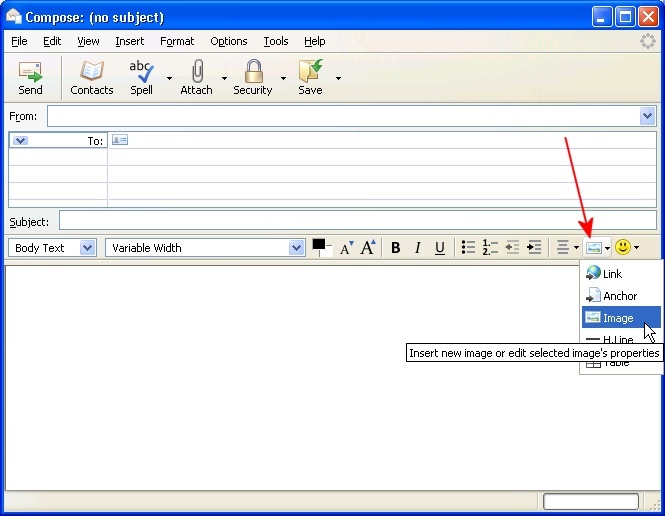
After you have written your mail, click on the "Insert" button, then "Image", or select in the menu "Insert", then "Image" :
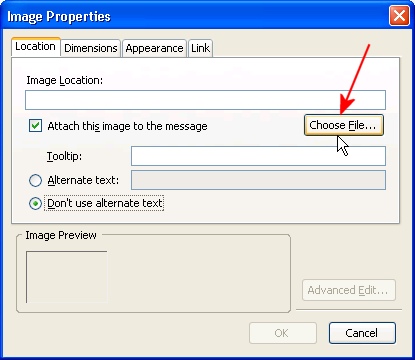
Click then on the "Choose File" button :
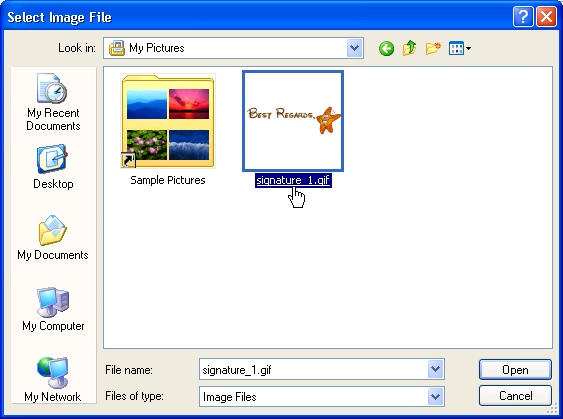
Then select the image that you saved on your computer :
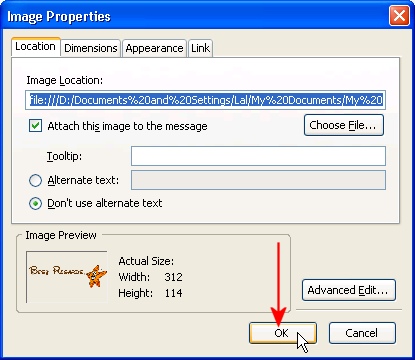
Finally, click on the "OK" button to confirm your choice :
Your signature will appear in your mail :
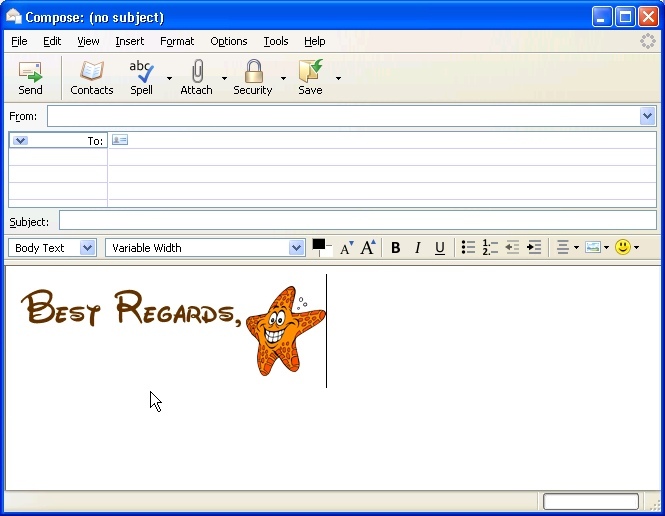
Note that your signature will appear as a non animated picture at this time.
It will appear as animated if you save the message and visualize it in your "Drafts" folder, or later when you've sent the
message, in your "Sent" folder.